
Wi-Fly Remote1.1.1 - App Store
You'll be able to see results in few seconds.
Publisher Description

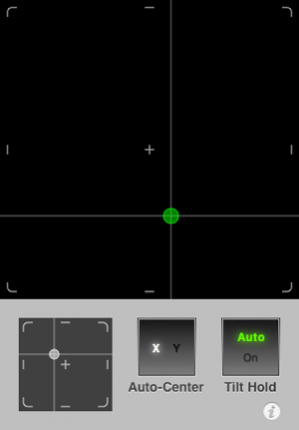
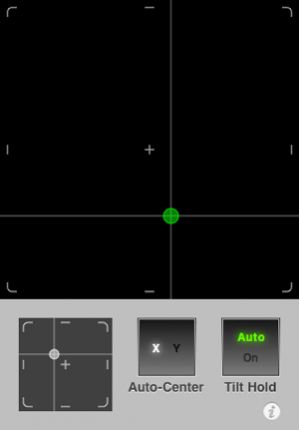

Wi-Fly Remote lets you use your iPhone or iPod touch as a remote-control joystick for X-Plane®, the excellent desktop flight simulator by Laminar Research*.
Like they say, the best joystick is the one that you carry with you at all times. Perfect for on-the-road laptop flying!
NOTE: You MUST have a copy of the X-Plane desktop flight simulator (NOT the same-named iPhone app) to use Wi-Fly Remote. This app is useless by itself! Please see requirements below.
See http://danieldickison.com/wifly for demo videos and to download the free Wi-Fly Plugin for X-Plane.
FEATURES:
- Large trackpad allows for "blind" control
- 4 axes of control: tilt x/y and trackpad x/y
- Very fast response time
- Customizable axis parameters
- Built-in control presets for fixed-wing aircraft (yoke, rudder and throttle) and helicopters (cyclic, yaw and collective)
- "Hold" switch so you can set it down without going in to a nosedive
REQUIREMENTS:
- X-Plane version 8.50+ or 9.30+ on Mac OS X (10.5+) or Windows (sorry, Linux is not currently supported by the plugin).
- The free Wi-Fly Plugin available from http://danieldickison.com/wifly
- iPhone or iPod touch must be connected via Wi-Fi to the same local network as the computer running X-Plane.
----
* Wi-Fly Remote is not developed or endorsed by Laminar Research.
Jul 15, 2011 Version 1.1.1
• Fix settings sometimes not getting saved.
• New: iOS 3.1 compatibility.
About Wi-Fly Remote
The company that develops Wi-Fly Remote is Daniel Dickison. The latest version released by its developer is 1.1.1.
To install Wi-Fly Remote on your iOS device, just click the green Continue To App button above to start the installation process. The app is listed on our website since 2011-07-15 and was downloaded 0 times. We have already checked if the download link is safe, however for your own protection we recommend that you scan the downloaded app with your antivirus. Your antivirus may detect the Wi-Fly Remote as malware if the download link is broken.
How to install Wi-Fly Remote on your iOS device:
- Click on the Continue To App button on our website. This will redirect you to the App Store.
- Once the Wi-Fly Remote is shown in the iTunes listing of your iOS device, you can start its download and installation. Tap on the GET button to the right of the app to start downloading it.
- If you are not logged-in the iOS appstore app, you'll be prompted for your your Apple ID and/or password.
- After Wi-Fly Remote is downloaded, you'll see an INSTALL button to the right. Tap on it to start the actual installation of the iOS app.
- Once installation is finished you can tap on the OPEN button to start it. Its icon will also be added to your device home screen.
Program Details
System requirements
Download information
Pricing
Version History
version 1.1.1
posted on 2011-07-15
Jul 15, 2011 Version 1.1.1
• Fix settings sometimes not getting saved.
• New: iOS 3.1 compatibility.
version 1.1.1
posted on 2009-11-14
Disclaimer
Official App Store Link
We do not host Wi-Fly Remote on our servers. We did not scan it for viruses, adware, spyware or other type of malware. This app is hosted by Apple and passed their terms and conditions to be listed there. We recommend caution when installing it.
The App Store link for Wi-Fly Remote is provided to you by apps112.com without any warranties, representations or guarantees of any kind, so access it at your own risk.
If you have questions regarding this particular app contact the publisher directly. For questions about the functionalities of apps112.com contact us.
